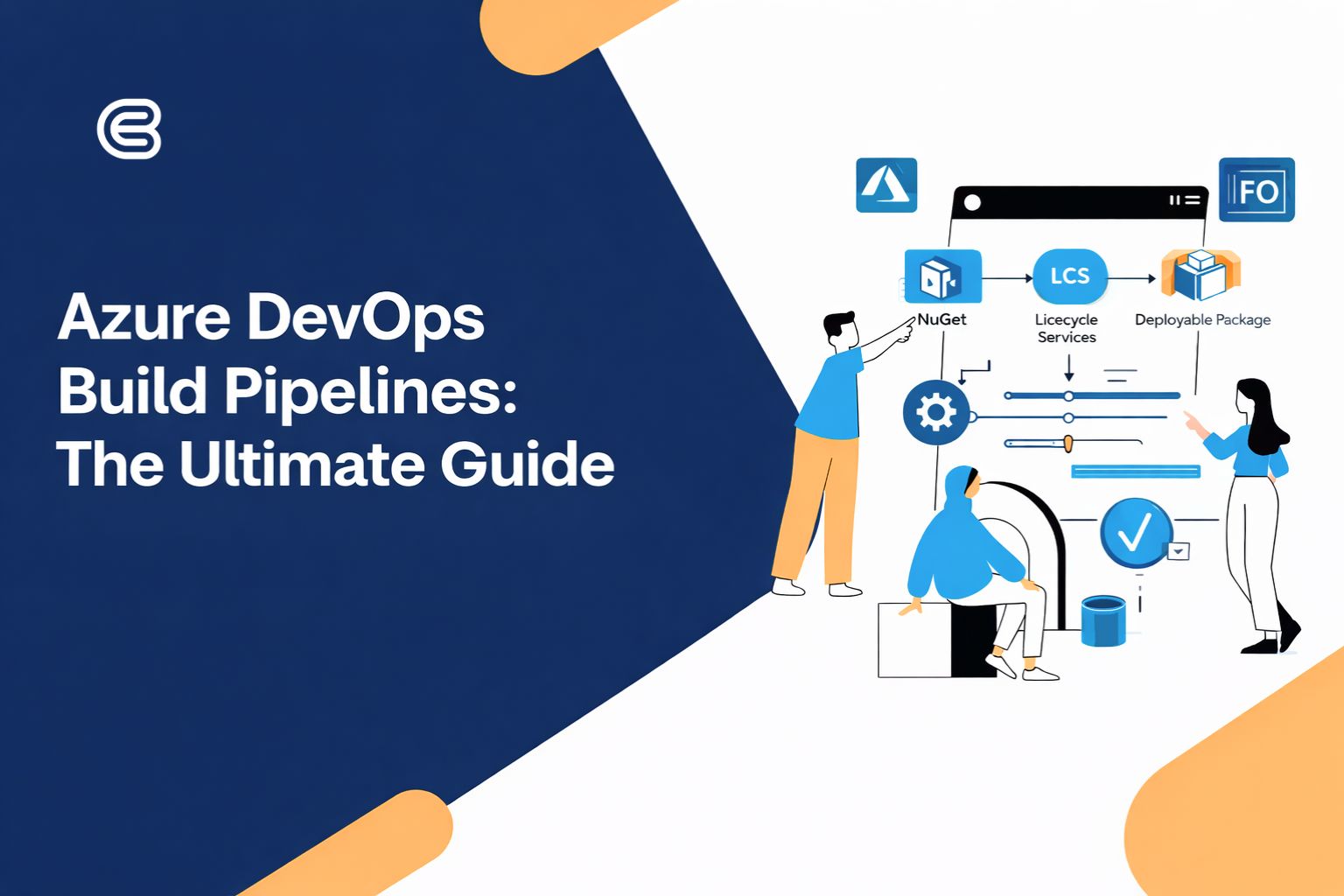

Azure DevOps Build Pipelines: The Ultimate Guide

Azure DevOps Build Pipelines The Ultimate Guide

Automating the build process in Azure DevOps is essential for keeping your Dynamics 365 Finance & Operations (D365 F&O) environments consistent and reliable. Using build pipelines, you can generate deployable packages to promote in higher environments using Lifecycle Services (LCS).

Whether you prefer classic pipelines or a YAML-based setup (for Git repositories), this guide walks you through the full process, from preparing NuGet packages to uploading configuration files and creating the pipeline.

Setting Up NuGet Packages

Why NuGet Packages Matter

NuGet packages are a key part of any D365 F&O build pipeline. They ensure that your build and deployment process aligns with the correct application and platform version.

For example, in this guide:

  • Application version: 10.0.41
  • Platform version: PU65
Setting Up NuGet Packages

Step 1: Download NuGet Packages from LCS

Go to the Shared Asset Library: Log in to Lifecycle Services (LCS), open the Shared Asset Library, and choose NuGet Packages.

Download based on your version

For D365 F&O 10.0.17 or earlier

  • Application Build Reference
  • Platform Build Reference
  • Compiler Tools

For versions 10.0.18 – 10.0.39

  • Application Build Reference
  • Application Suite Build Reference
  • Platform Build Reference
  • Compiler Tools

For version 10.0.40 and later (e.g., 10.0.41)

  • Application 1 Build Reference
  • Application 2 Build Reference
  • Application Suite Build Reference
  • Platform Build Reference
  • Compiler Tools

Tip: PU65 represents Platform Update 65.
10.0.41 represents the Application Update version.

Download NuGet Packages from LCS​

Step 2: Organize and Prepare Your NuGet Packages

Create a local folder
    • Store all downloaded packages in one folder.
    • Avoid spaces (e.g., use: NuGet_Packages).
Create a new DevOps feed
    • Go to Artifacts in Azure DevOps.
    • Create a new feed.
Connect your feed
    • Choose the NuGet option.
    • In your folder, create a nuget.config file using the connection details provided.
Install required tools
    •  Download nuget.exe
      and installcredprovider.ps1 via the Get the tools instructions.
    • Save these
      tools in the same folder as the NuGet packages.

Step 3: Configure Your NuGet Packages

Create packages.config. Add a file named packages.config with entries like:

<?xml version="1.0" encoding="utf-8"?>
<packages>
<package id="Microsoft.Dynamics.AX.Application1.DevALM.BuildXpp" version="10.0.2015.54" targetFramework="net40" />
<package id="Microsoft.Dynamics.AX.Application2.DevALM.BuildXpp" version="10.0.2015.54" targetFramework="net40" />
<package id="Microsoft.Dynamics.AX.ApplicationSuite.DevALM.BuildXpp" version="10.0.2015.54" targetFramework="net40" />
<package id="Microsoft.Dynamics.AX.Platform.CompilerPackage" version="7.0.7367.49" targetFramework="net40" />
<package id="Microsoft.Dynamics.AX.Platform.DevALM.BuildXpp" version="7.0.7367.49" targetFramework="net40" />
</packages>

Your folder should now contain:

  • NuGet packages
  • nuget.exe
  • installcredprovider.ps1
  • packages.config
  • nuget.config


Enable the credential provider
Open PowerShell inside your NuGet folder and run:

Set-ExecutionPolicy -ExecutionPolicy Unrestricted -Scope CurrentUser
./installcredprovider.ps1 -AddNetfx

Step 4: Push NuGet Packages to Azure DevOps

Use the command below for each package:

.\nuget.exe push -Source "ArtifactFeedName" -ApiKey az ""

Example:

.\nuget.exe push -Source "AzurePipelines" -ApiKey az C:\Users\ExampleUser\NuGet_Packages\Microsoft.Dynamics.AX.Application1.DevALM.BuildXpp.nupkg

When finished, verify that the packages appear in your Azure DevOps feed.

Step 5: Upload Configuration Files

Add configuration files to your repo

    • Upload through Azure DevOps Web if enabled, or
    • Use Visual Studio / another Git tool to commit them.

Your build environment is now ready. Next, you can create a classic pipeline or a YAML pipeline, depending on your repo type (TFVC or Git).

Setting Up Classic Build Pipelines for D365 F&O in Azure DevOps

A classic build pipeline is a simple and flexible way to generate deployable packages for D365 F&O. Follow the guide below to set it up quickly.

Preliminary Requirements: Azure DevOps Parallelism

Before you start, make sure Azure DevOps Parallelism is enabled. Without free parallelism, the pipeline won’t run.

Useful Resources

Download the Template Pipeline

Clone the Sample Tools Repository

From GitHub: Dynamics 365 X++ Samples Tools Repository

Extract the Files

After downloading the repository, extract the files to a convenient location on your computer.

Navigate to the Pipeline Samples Directory

Open PowerShell and change to the Pipeline Samples directory:

cd C:\Users<YourUser>\Downloads\Dynamics365-Xpp-Samples-Tools-master\CI-CD\Pipeline-Samples

Run the Classic CI Script

Execute the script in PowerShell:

./xpp-classic-ci-.ps1

You will be prompted to enter the following:

  • Organization name
  • Project name
  • PAT (Personal Access Token)

The script will automatically create your pipeline.

Download the Template Pipeline​

Step 2: Configure the Pipeline

1. Pipeline Settings

  • Give your pipeline a name
  • Choose a Hosted Agent (Windows is typical)

2. Source Control

  • Go to Get Sources
  • Select TFVC (classic pipelines do not support Git)
  • Map your workspace and set the server path

3. NuGet Custom Install

Update $NugetConfigsPath to the folder where the following are located:

  • nuget.config
  • packages.config
  • All NuGet packages

4. Build Solution

  • Point to the .sln file that includes all models you want to build
  • Make sure your solution is checked into Azure DevOps.

Save and Run

Save the Pipeline

After configuring your pipeline, save it in Azure DevOps.

Run the Pipeline

Execute the pipeline to start the build process.

Troubleshoot Failures

If the pipeline fails, check the following:

  • NuGet feed paths
  • Solution mapping
  • Workspace setup
  • Pipeline variable paths

Customizing Your Pipeline

Enhance the Running Pipeline

Once the pipeline is running, you can perform additional tasks to improve automation and flexibility:

  • Add validation tasks
  • Automate versioning
  • Create custom triggers
  • Integrate release steps
  • Add PowerShell scripts

Azure DevOps provides a lot of flexibility, allowing you to tailor the pipeline to your project’s deployment process.

Questions or Feedback?

If you have any questions, need clarification, or want to discuss D365 F&O best practices, feel free to reach out.
I’m always happy to help and exchange ideas with the community.

👉 Contact me here: https://ebregu.com/contact/

Share this post

Found this useful? Help others discover it.

Leave a Comment

Your email address will not be published. Required fields are marked *