How to filter display methods in D365 F&O
In Dynamics 365 Finance & Operations (D365 F&O), fields that are based on display methods are not filterable on forms.
However, in real projects, clients often request filtering on such fields. Vendor name is one of the most common examples.
There are two possible approaches to make display-method-based fields filterable, but only one aligns with best practices and is safe for performance, extensibility, and future upgrades.
In this article, I’ll walk you through the recommended best-practice solution:
Replacing the display method with a view-based data source.
Business Scenario
On the Purchase Order Lines form, the Vendor name column is derived from a display method.
Because of that, the column:
Cannot be filtered
Cannot be sorted properly
Is evaluated row-by-row at runtime
Our goal is to make Vendor name filterable while keeping the solution upgrade-safe and performant.
Why Not Use a Display Method?
Display methods:
Are calculated at runtime
Do not participate in SQL queries
Cannot be used in filtering, sorting, or grouping
Microsoft’s best practice clearly states:
If a field needs to be searchable, sortable, or filterable, it must come from a table or a view.
That’s exactly why we’ll use a view.
Solution Overview (Best Practice)
We will:
Create a view that exposes the required fields
Add a relation between the primary table and the view
Add the view as a form data source
Replace the display method with the view field
Remove the obsolete display method
Step-by-Step Implementation
Step 1: Create a View
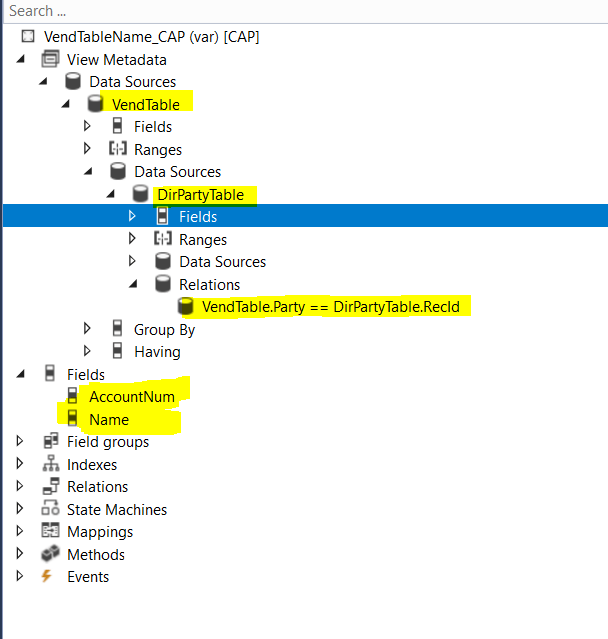
Create a new view, for example:
VendTableName_CAP
Metadata (Data Sources)
Add the following tables:
VendTable
DirPartyTable
Create a relation:
VendTable.Party == DirPartyTable.RecIdFields
Expose the following fields in the view:
VendTable.AccountNum → Used for joining with the form datasource
DirPartyTable.Name → Replaces the display method
At this point, your view returns Vendor account + Vendor name in a SQL-friendly way.
Step 2: Add a Relation on the Form Data Source Table
In our case, the primary form datasource is PurchLine.
On the PurchLine table:
Create a new relation to the view
VendTableName_CAPMap: PurchLine.VendAccount == VendTableName_CAP.AccountNum
This ensures that the form can correctly join PurchLine records to the view.
Step 3: Add the View as a Form Data Source
On the Purchase order lines form:
Add VendTableName_CAP as a new Form Data Source
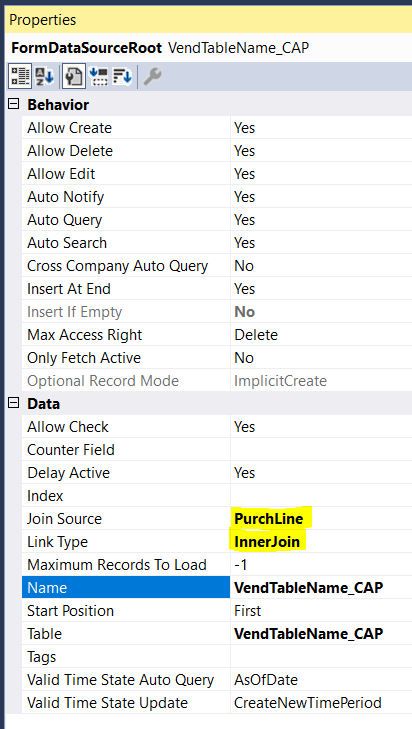
Set the following properties:
| Property | Value |
|---|---|
| JoinSource | PurchLine |
| LinkType | InnerJoin |
| Table | VendTableName_CAP |
This makes the view participate directly in the form query.
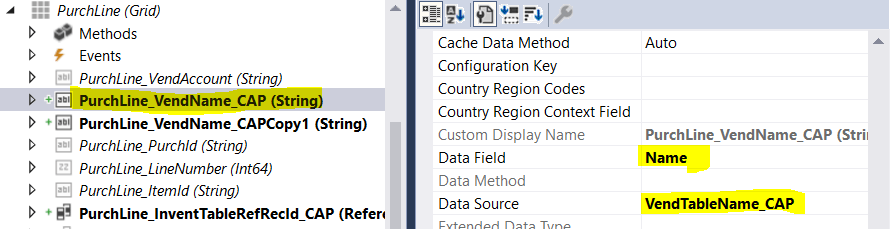
Step 4: Add the View Field to the Grid
Now:
Add VendTableName_CAP.Name to the grid
Bind it directly to the view data source
The field is now:
Filterable
Sortable
SQL-backed
Performance-friendly
Step 5: Remove the Display Method
Once the view-based field is confirmed working:
Remove the old display method
Clean up unused code
This keeps your solution clean and aligned with best practices.
By following these steps, organizations can effectively customize SSRS reports in D365 F&O, tailoring them to their specific business needs. This flexibility enhances the reporting capabilities of the system, providing users with accurate and relevant insights into their operations.
Final Result
- Vendor name is now filterable
- Works with standard grid filtering
- No runtime display method execution
- Upgrade-safe and extensible
The form behaves exactly as users expect:
Sort A → Z / Z → A
Filter on the field
Better performance on large datasets
Questions or Feedback?
If you have any questions, need clarification, or want to discuss D365 F&O best practices, feel free to reach out.
I’m always happy to help and exchange ideas with the community.
👉 Contact me here: https://ebregu.com/contact/